

Configure your documentation site’s branding, appearance, and features from the Configurations panel in the web editor. Configuration changes sync in real-time with other editors on the same branch, so your team always sees the latest settings.Documentation Index
Fetch the complete documentation index at: https://mintlify-mintlify-agent-collab-attribution-1777587106.mintlify.app/llms.txt
Use this file to discover all available pages before exploring further.
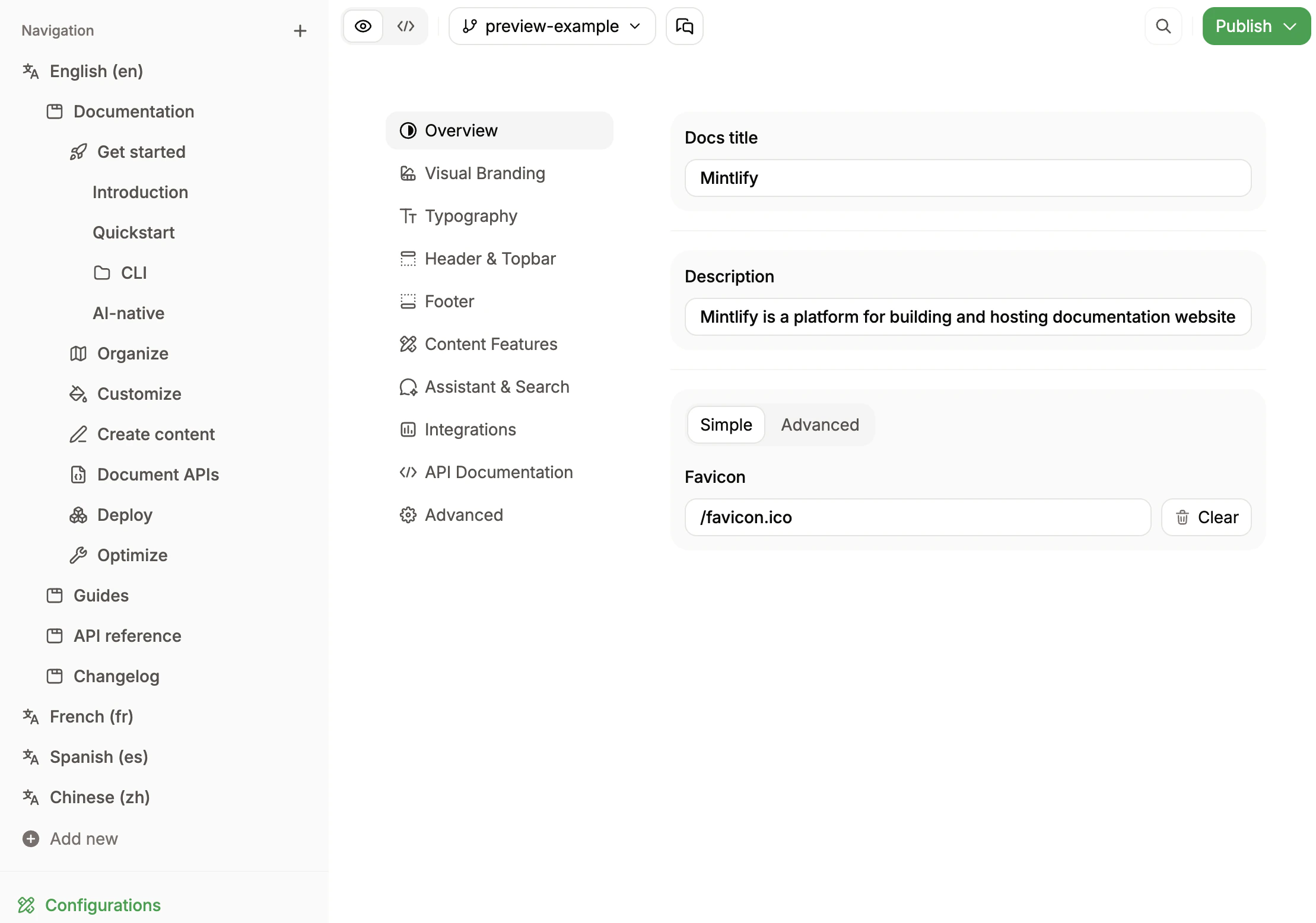
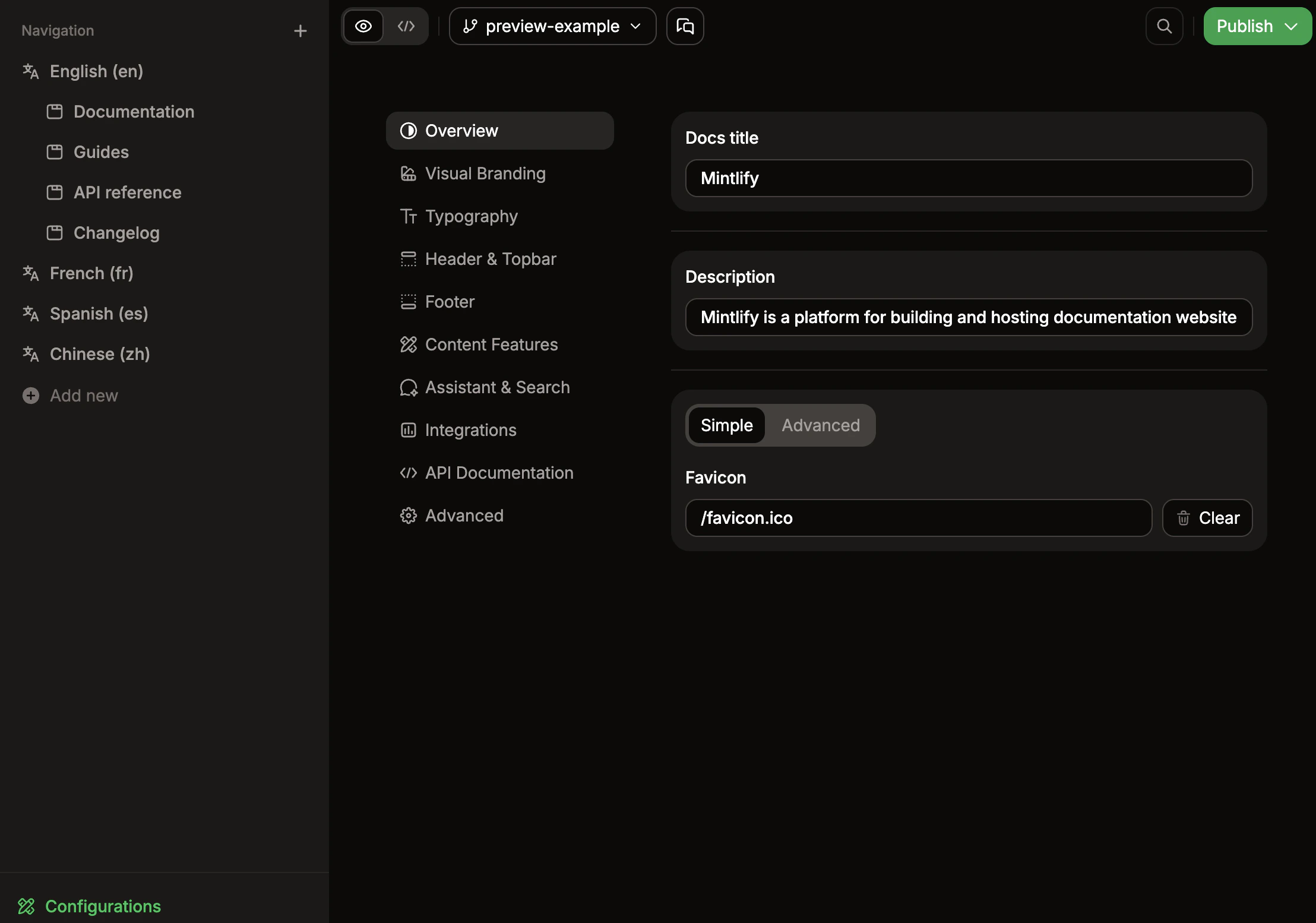
Brand your site
Set your site’s identity and how it appears to visitors.- Docs title: The name of your site. Appears in browser tabs and search results.
- Description: Brief summary of your documentation. Used for SEO and site metadata.
- Favicon: Small icon that appears in browser tabs. Upload ICO, PNG, GIF, or JPG files.
Customize colors and appearance
Control your site’s visual identity and color scheme.- Theme: Choose a theme for your site’s overall appearance.
- Primary color: The main accent color used throughout your site for links, buttons, and highlights.
- Light mode color: Accent color variation for light mode. How themes apply this varies by theme.
- Dark mode color: Accent color variation for dark mode. How themes apply this varies by theme.
- Logo: Your brand logo. Upload PNG or JPG files. You can set different logos for light and dark modes. To use an SVG logo, add the file to your repository via Git and reference its path in your docs.json configuration.
- Logo link: Where users go when they click your logo. Typically your homepage or marketing site.
- Background colors: Set custom background colors for light and dark modes separately.
- Background image: Add a background image to your site. Upload PNG, GIF, or JPG files.
- Background decoration: Apply visual styles to your background image.
- Theme toggle: Show or hide the light/dark mode switcher for users.
- Default theme: Set whether your site loads in light or dark mode by default.
Set custom fonts
Replace default fonts with your brand’s typography.- Default font: The base font family and weight for all text. Provide a source URL and format (WOFF or WOFF2).
- Heading font: Font family and weight specifically for headings (h1, h2, etc.). Set separately from body text.
- Body font: Font family and weight for body text and paragraphs.
Configure header and banner
Add navigation elements to the top of your site.- Navbar links: Add navigation links in your header. Each link includes text and a URL.
- Banner: Add a banner displayed at the top of every page.
Configure footer
Add links and social media handles to your site footer.- Social links: Add your profiles on platforms like GitHub, X (Twitter), LinkedIn, Discord, YouTube, Slack, and more.
- Footer columns: Organize footer links into columns with custom headings and link groups.
Enhance content
Customize how content appears on your site.- Thumbnail background: Set a custom background image for page thumbnails and social previews.
- Thumbnail appearance: Control how thumbnails display.
- Thumbnail font: Set a custom font for text in thumbnails.
- Page eyebrow: Add small labels above page titles.
- Code block theme: Choose the syntax highlighting theme for code blocks.
- LaTeX support: Enable mathematical notation rendering with LaTeX.
- Icon library: Choose the icon library to use for your site.
Set up AI chat and search
Customize the search experience.- Search placeholder: The text that appears in the search box before users type. Default is “Search or ask…”.
Connect integrations
Connect third-party tools for analytics, support, and compliance.API specifications
Document your API endpoints.- OpenAPI specs: Upload an OpenAPI specification file to generate API reference pages.
- AsyncAPI specs: Upload an AsyncAPI specification file to generate API reference pages.
- Playground display: Choose to display the interactive API playground, simple API playground, or no API playground.
- Proxy server: Enable or disable the proxy server for API requests.
Additional page behaviors
- 404 pages: Customize 404 pages and set up redirect behavior.
- Menu drilldown: Enable or disable auto-navigating to the first page when a user clicks a navigation group.
- Timestamps: Show “Last modified on [date]” on all pages.
- SEO indexing: Choose whether to index hidden pages for search engines.